I purchased PRO but can’t see the PRO hiking map?
In the KOMPASS App:
Your purchased PRO membership is assigned to your KOMPASS account immediately after purchase. Make sure you are logged in with the correct account in the app.
-
- Check your PRO status
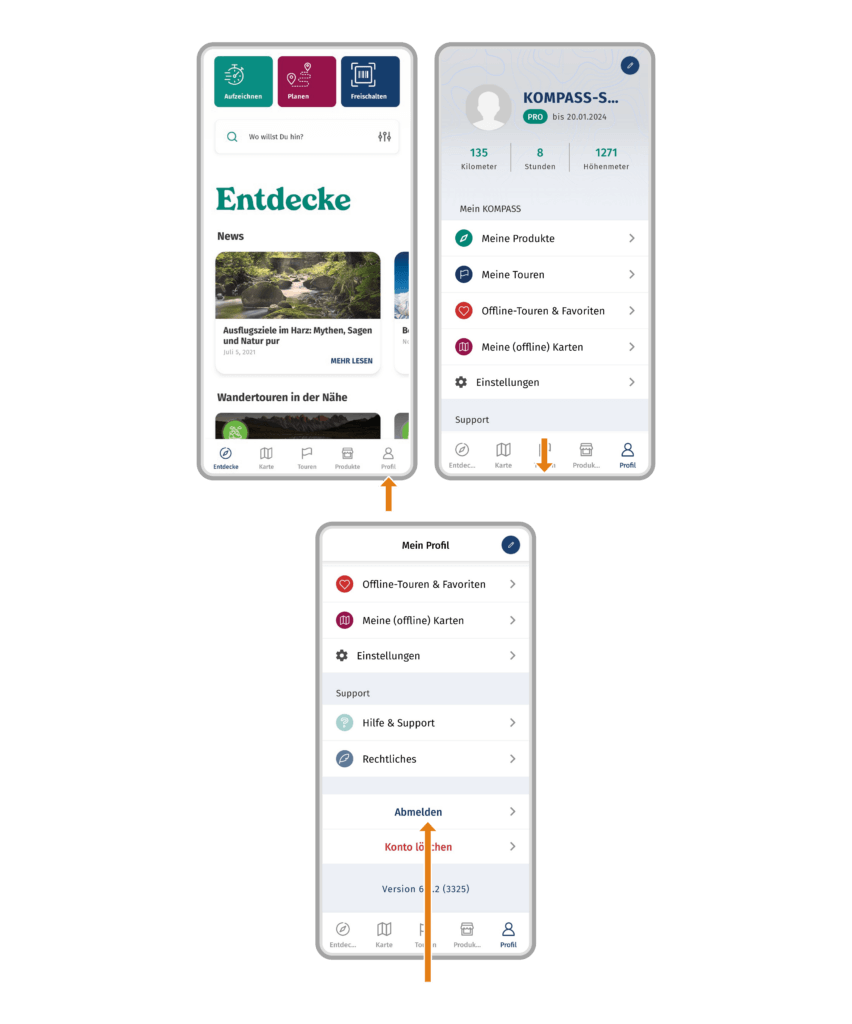
- Open the KOMPASS App
- Tap on “Profile” in the menu bar
- If your account has an active PRO membership, you will see a green field with “PRO” under your username.
2. Your PRO status is not displayed:
- Close the app and restart it
- Log out of the app. To do this, swipe down in the profile and tap on “Log out”. Then log in again with your account. Check your PRO status again.
- Additional steps for Android users: If you have an Android smartphone and purchased your subscription in the Google-Play-Store, try using the the “Restore Purchases” button in your profile.
- If your PRO status is still not displayed, contact our support.
 3. Your PRO status is displayed:
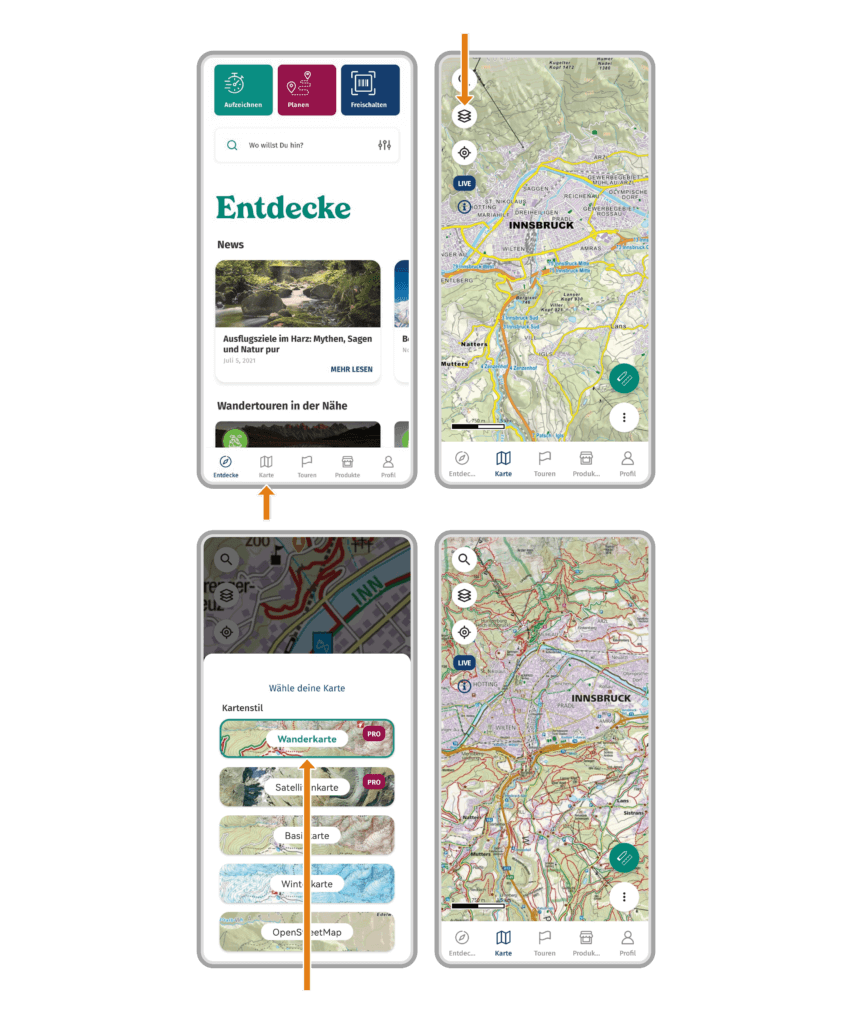
- Try to open the PRO hiking map
- Tap on “Map” in the menu bar
- Tap on the layers button
- Tap on “Hiking Map”. You can switch the map view at any time again
- If an error occurs here, contact our support.
- Check your PRO status
On the KOMPASS Website:
Your purchased PRO membership is assigned to your KOMPASS account immediately after purchase. Make sure you are logged in with the correct account on the website.
- Check your PRO status
- Visit the KOMPASS website
- Click on your Profile
- If your account has an active PRO membership, you will see the text „KOMPASS PRO bis ……..“ under your username
- Your PRO status is not displayed:
- Close the website and reopen it
- Log out of the website. Click on your profile and then click on “Log out”. Then log in again with your account.
- If your PRO status is still not displayed, contact our support.
- Your PRO status is displayed:
- Try to open the PRO hiking map
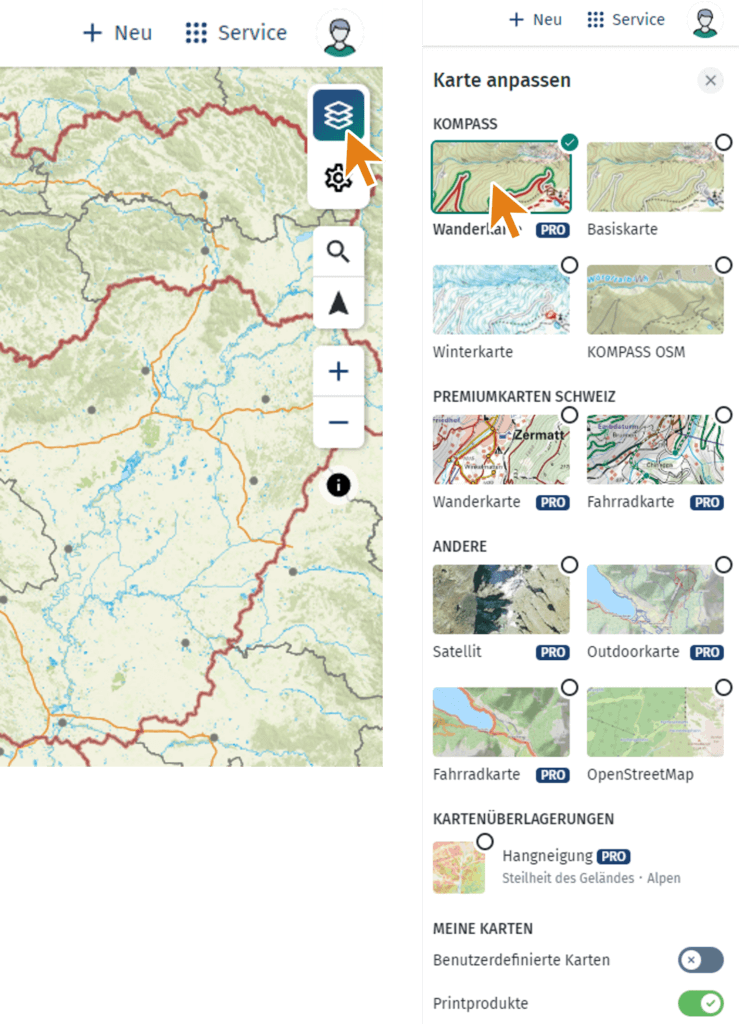
- Click on „Karte“
- Click on the layers icon in the upper right corner of the map
- Click on “Hiking Map”. You can switch the map layer at any time again
- If an error occurs here, contact our support.
 0
0
 0
0